From Model to Manual: A Software Engineer’s Guide to Syncing Visual Paradigm Desktop Diagrams with OpenDocs
Authored by the Visual Paradigm Engineering Team | Reviewed by DevOps & Documentation Specialists
Introduction
In modern software development, the gap between architectural design and living documentation is a persistent source of technical debt. Diagrams created in modeling tools often become stale the moment they’re exported as static images and pasted into wikis or Confluence pages. This disconnect slows down onboarding, creates ambiguity during code reviews, and forces teams to maintain parallel sources of truth.
This guide presents a production-ready workflow for bridging Visual Paradigm Desktop—a professional modeling environment—with Visual Paradigm OpenDocs, an AI-powered knowledge management platform. By leveraging the Pipeline artifact repository, engineering teams can establish a seamless, version-controlled pipeline from concept to documentation. Whether you’re generating UML diagrams via AI-assisted modeling or refining enterprise architecture models manually, this integration ensures your documentation evolves in lockstep with your designs.
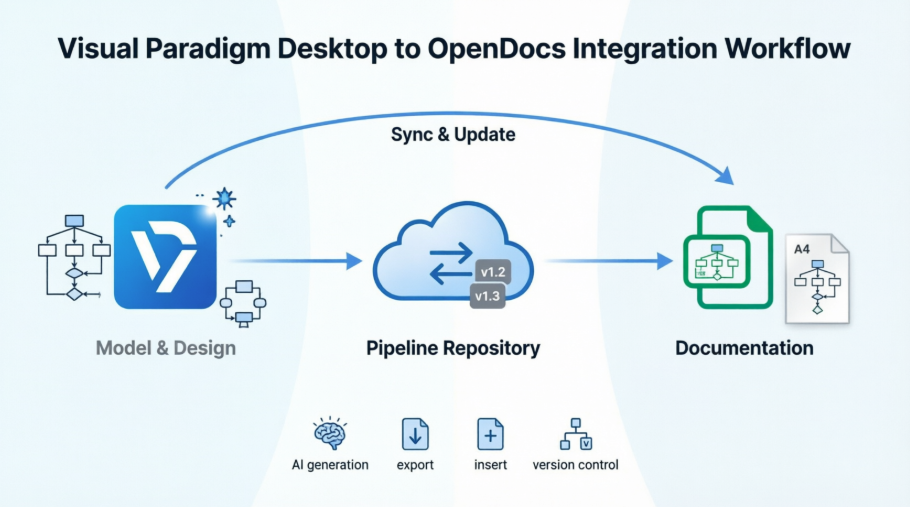
Written by software engineers for software engineers, this guide includes setup checklists, step-by-step procedures, synchronization patterns, and engineering best practices to help your team adopt this workflow with confidence.
Note: This integration requires Visual Paradigm Professional Edition or higher.
Overview: The Concept-to-Docs Workflow
The new integration creates a bidirectional bridge between modeling and documentation:
-
Model: Create or refine diagrams in Visual Paradigm Desktop using professional tooling or AI-assisted generation.
-
Export: Push diagrams to the secure Pipeline repository with optional metadata.
-
Document: Embed live, editable diagrams directly into OpenDocs pages.
-
Sync: Update source models and propagate changes to documentation without manual re-exporting.
This workflow eliminates the friction of file exports, email attachments, and manual image uploads—reducing context-switching and ensuring documentation accuracy.
Understanding the Core Components
Visual Paradigm Desktop
A comprehensive desktop modeling suite supporting UML, BPMN, ERD, ArchiMate, and more. Features include AI diagram generation, version control integration, and team collaboration tools.
Visual Paradigm OpenDocs
A web-based knowledge management platform with:
-
Rich Markdown editor with live preview
-
Embedded, re-editable diagram components
-
Hierarchical “Knowledge Tree” for project organization
-
AI-powered content assistance
-
Secure sharing via read-only links
The Pipeline
A cloud-based artifact repository that serves as the synchronization layer between Visual Paradigm tools. Key characteristics:
-
Secure, centralized storage for diagrams, models, and documentation assets
-
Version tracking with revision history
-
Cross-tool interoperability (Desktop → Online → OpenDocs → Chatbot)
-
Metadata support (comments, tags, authorship)
Prerequisites & Setup Guidelines
Before implementing this workflow, ensure your environment meets these requirements:
| Requirement | Details |
|---|---|
| License | Visual Paradigm Professional Edition or higher |
| Desktop Version | Latest stable release of Visual Paradigm Desktop (download) |
| OpenDocs Access | Active account at https://online.visual-paradigm.com/app/opendocs/ |
| Network | Outbound HTTPS access to *.visual-paradigm.com for Pipeline synchronization |
| Authentication | Single Sign-On (SSO) or VP account credentials for both Desktop and OpenDocs |
Engineering Checklist
-
Confirm team licenses include Professional Edition features
-
Verify Pipeline access permissions in OpenDocs admin settings
-
Establish naming conventions for artifacts (e.g.,
proj-module-diagram-v1.2) -
Document the workflow in your team’s onboarding guide
-
Set up a sandbox project for initial testing
Step-by-Step: Exporting Diagrams to OpenDocs
Whether you created your diagram manually or used our AI generation tool, exporting it to your documentation is simple:
-
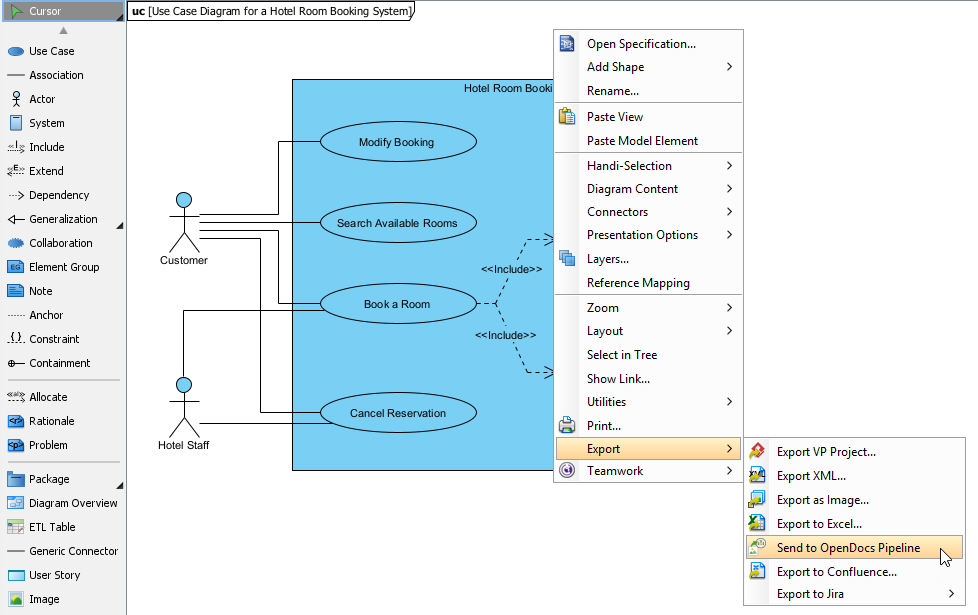
In Visual Paradigm Desktop, open the diagram you wish to send.
-
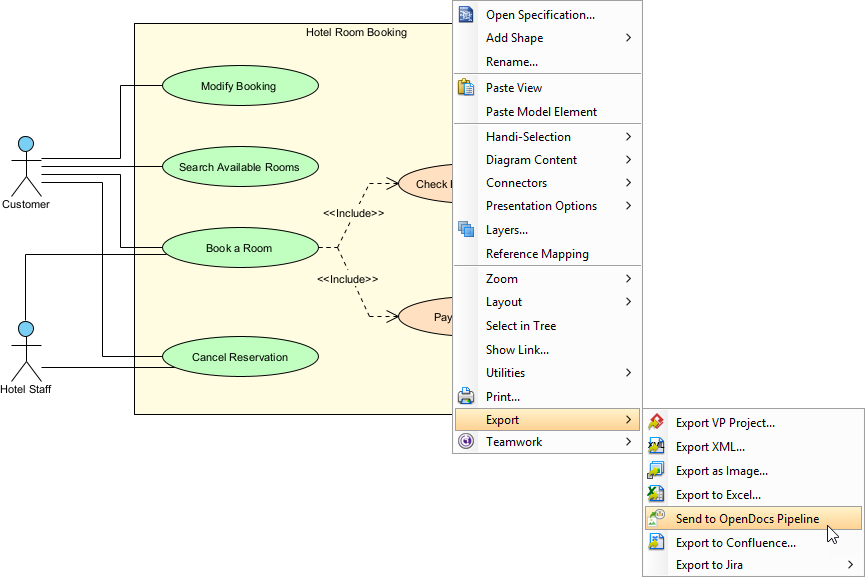
Right-click on the diagram and select Export > Send to OpenDocs Pipeline.
-
When prompted, save your project by clicking OK.
-
(Optional) Enter a comment. This will be visible in the Pipeline pane within OpenDocs to help you identify the version or purpose of the artifact.
-
Confirm the export to output your diagram to the cloud.
Engineering Tip: Use descriptive comments like
auth-service-sequence-diagram-v2.1-refactorto improve artifact discoverability in the Pipeline.
Step-by-Step: Inserting Artifacts into Your Document
Once your diagram is in the Pipeline, you can place it anywhere in your knowledge base:
-
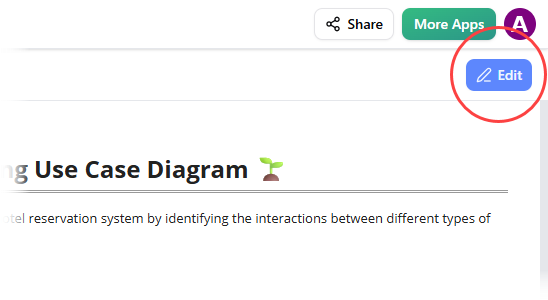
Open any document page in OpenDocs and click Edit.
-
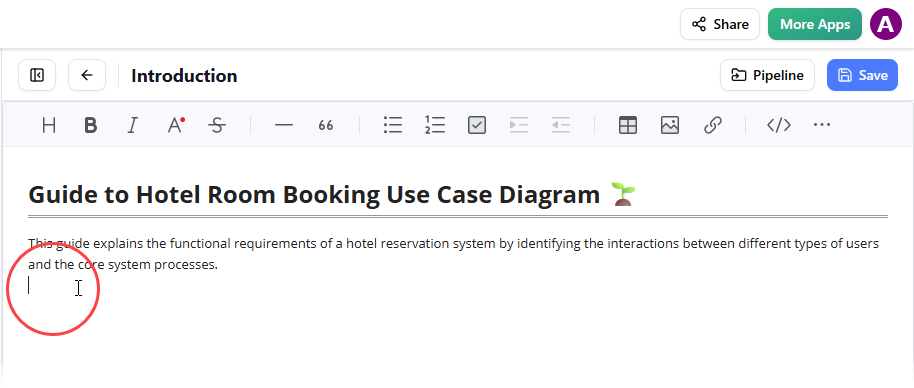
Click on the page where you want to insert the diagram.
-
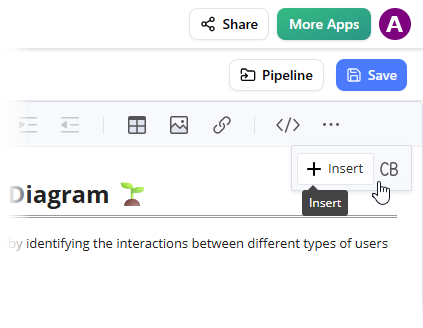
On the toolbar, click Insert.
-
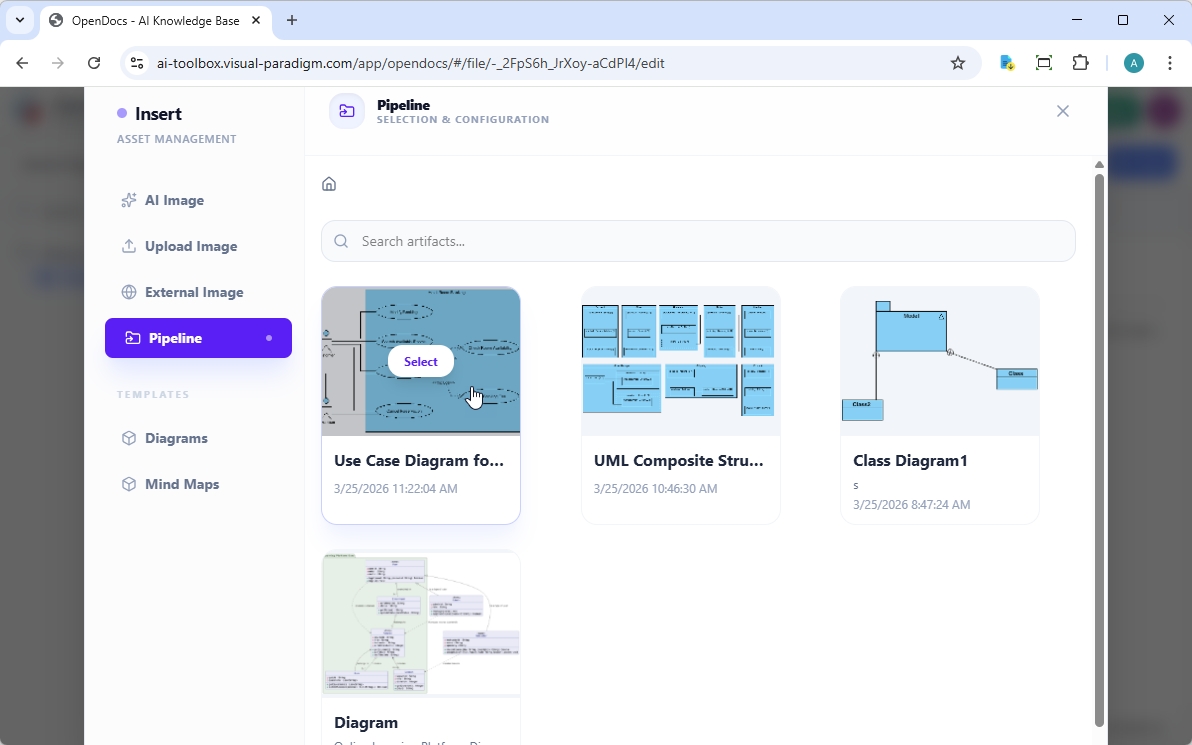
In the Insert window, select Pipeline from the left-hand sidebar. Your sent diagrams will appear here.
-
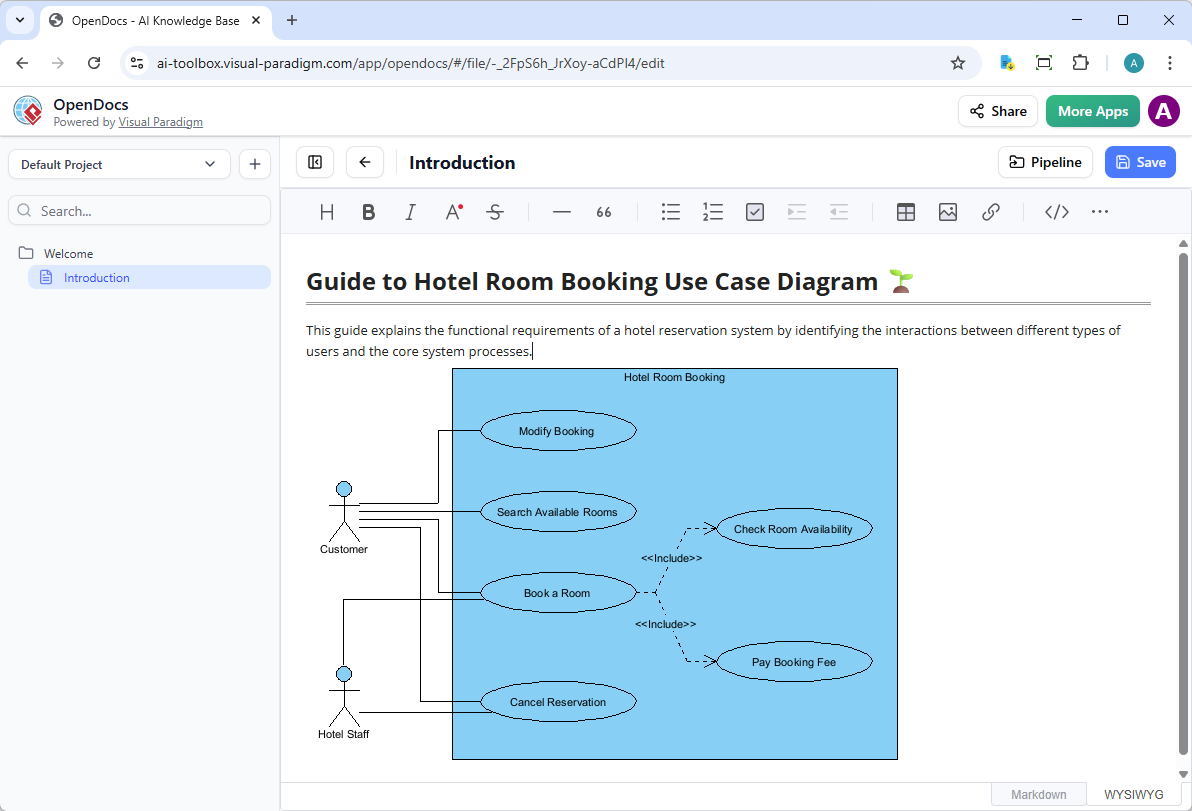
Click on the diagram to insert the image directly at your cursor position.
Pro Tip: Organize Pipeline artifacts using folder structures that mirror your repository layout (e.g.,
/backend/auth/,/frontend/components/) for intuitive navigation.
Step-by-Step: Keeping Documentation in Sync (Updating Artifacts)
One of the most powerful aspects of this integration is the ability to update your documentation as your models evolve. If you need to make changes to a diagram already in OpenDocs, follow these steps:
1. Open the Source Diagram
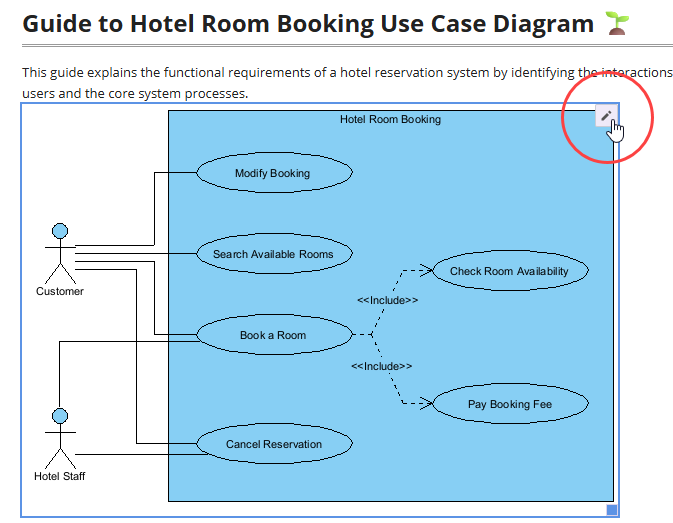
In OpenDocs, click the Edit icon at the top right of the diagram image to open the Edit Diagram window.
Copy the diagram link provided. In Visual Paradigm Desktop, go to Project > Open, paste the link, and the software will open the source model for you. (Alternatively, if you already have the project open, you can skip this step.)
2. Edit and Re-send
Modify your diagram in Visual Paradigm Desktop. Once finished, right-click the diagram and select Export > Send to OpenDocs Pipeline again. You can also simply commit your changes to VP Online, which automatically creates a new revision of the artifact.
3. Swap to the Latest Revision
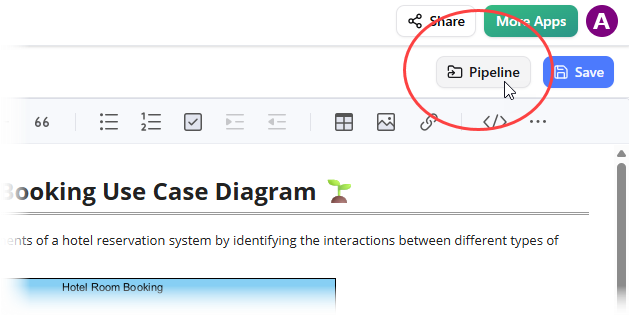
Back in the OpenDocs editor, click Pipeline at the top right.
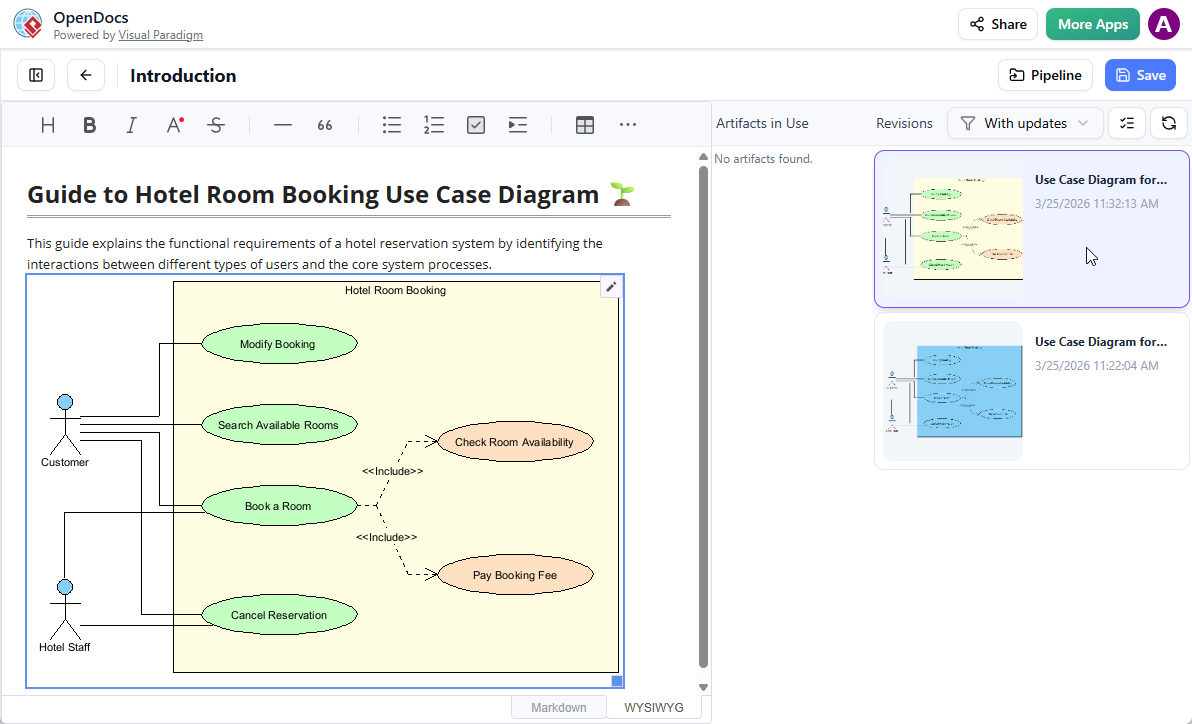
You will see the artifacts currently used on that page. Select the diagram to see a list of revisions. Simply click on the latest revision to instantly swap the old diagram for the updated version.
Version Control Pattern: Treat Pipeline revisions like Git commits—use meaningful comments and tag major releases (e.g.,
v1.0-release,v2.0-arch-refactor).
Engineering Best Practices & Guidelines
Artifact Management
-
Naming Convention: Use
project-component-diagram-purpose-versionformat for clarity. -
Metadata: Always add comments during export to document intent, author, and change scope.
-
Retention Policy: Archive obsolete artifacts quarterly to keep the Pipeline organized.
Collaboration Workflow
-
Code Review Integration: Link Pipeline artifact URLs in pull request descriptions for visual context.
-
Access Control: Restrict Pipeline write permissions to senior architects; grant read access to broader teams.
-
Notification Strategy: Use OpenDocs’ @mentions to alert stakeholders when critical diagrams are updated.
Performance & Reliability
-
Diagram Complexity: For large diagrams (>500 elements), consider splitting into modular sub-diagrams to improve load times.
-
Offline Work: Desktop changes sync to Pipeline upon reconnection—ensure stable network during critical exports.
-
Backup: Pipeline artifacts are cloud-backed, but maintain local
.vppproject backups per your organization’s DR policy.
Security Considerations
-
Sensitive Models: Avoid exporting diagrams containing credentials, internal IPs, or proprietary algorithms to shared Pipeline spaces.
-
Audit Trail: Enable Pipeline activity logging for compliance-sensitive projects.
-
Link Sharing: Use OpenDocs’ read-only links for external stakeholders instead of granting direct Pipeline access.
Troubleshooting Common Issues
| Issue | Resolution |
|---|---|
| “Send to OpenDocs Pipeline” option missing | Verify license tier (Professional+ required) and Desktop version is up to date |
| Artifact not appearing in OpenDocs Pipeline | Check network connectivity; refresh Pipeline pane; confirm same VP account is used in both tools |
| Diagram fails to embed in OpenDocs | Ensure diagram has at least one element; retry insertion after clearing browser cache |
| Revision history not updating | Confirm you’re viewing the correct artifact; check if another user has locked the document |
| Slow load times for large diagrams | Optimize diagram complexity; use OpenDocs’ lazy-loading preview mode |
Support: For persistent issues, contact Visual Paradigm support with your artifact ID, VP Desktop version, and browser/console logs.
Conclusion
The integration between Visual Paradigm Desktop and OpenDocs represents a significant advancement in engineering documentation workflows. By treating diagrams as first-class, versioned artifacts rather than static images, teams can maintain accurate, living documentation that evolves alongside their systems. This reduces technical debt, accelerates knowledge transfer, and strengthens alignment between architecture and implementation.
We encourage engineering teams to adopt this workflow incrementally: start with a pilot project, document your team’s conventions, and expand usage as confidence grows. The time invested in setting up this pipeline pays dividends in reduced onboarding time, fewer clarification meetings, and higher-quality architectural decision records.
As the Visual Paradigm ecosystem continues to evolve—with AI-assisted modeling, cross-tool synchronization, and enhanced collaboration features—this foundation ensures your documentation infrastructure scales with your engineering ambitions.
Ready to implement? Access OpenDocs or download Visual Paradigm Desktop to begin your Concept-to-Docs journey today.
References
- Visual Paradigm OpenDocs: The Complete Guide to AI-Powered Knowledge Management and Diagram Generation: Comprehensive overview of OpenDocs capabilities, AI features, and enterprise knowledge management strategies.
- Visual Paradigm OpenDocs Official Feature Page: Official product documentation detailing OpenDocs’ core features, pricing, and integration points.
- Visual Paradigm OpenDocs: The Complete Developer’s Guide to AI-Powered Technical Documentation: Developer-focused guide covering Markdown workflows, diagram embedding, and API integrations.
- OpenDocs AI Tool Documentation: Technical reference for AI-powered diagram generation, natural language processing, and automation features within OpenDocs.
- Harnessing Visual Paradigm’s AI for Diagram Generation: The Ultimate 2026 Guide: In-depth exploration of AI-assisted modeling techniques, prompt engineering, and quality validation workflows.
- AI Flowchart Generator: OpenDocs Update: Release notes detailing new AI flowchart capabilities, usage examples, and integration patterns with OpenDocs.
- Sync AI Diagram to OpenDocs Pipeline: Guide: Step-by-step tutorial for synchronizing AI-generated diagrams between modeling tools and OpenDocs via the Pipeline.
- From Idea to Enterprise: My Journey Through Visual Paradigm’s Four AI Pillars: Case study exploring real-world implementation of Visual Paradigm’s AI ecosystem across enterprise projects.
- OpenDocs Professional: Mind Map Integration Update: Release announcement covering new mind mapping capabilities, collaboration features, and Pipeline synchronization for visual brainstorming.
- New in OpenDocs: AI-Powered Data Flow Diagram (DFD) Support: Technical update on AI-assisted DFD creation, validation rules, and integration with system architecture documentation.
- AI Component Diagram Generator: OpenDocs Update: Feature release detailing AI-driven component diagram generation, microservices modeling support, and OpenDocs embedding workflows.